Customize your theme
This guide shows you how to customize the waiting page shown while an instance starts.
services:
  sablier:
    image: sablierapp/sablier:next
    restart: always
    volumes:
      - '/var/run/docker.sock:/var/run/docker.sock'
      - '/path/to/my/themes:/etc/sablier/themes'
Sablier comes with a set of default themes that you can use.
You can also extend the themes by providing your own, which will be rendered as Go Templates.
The embedded themes
| Name | Preview |
|---|---|
ghost | 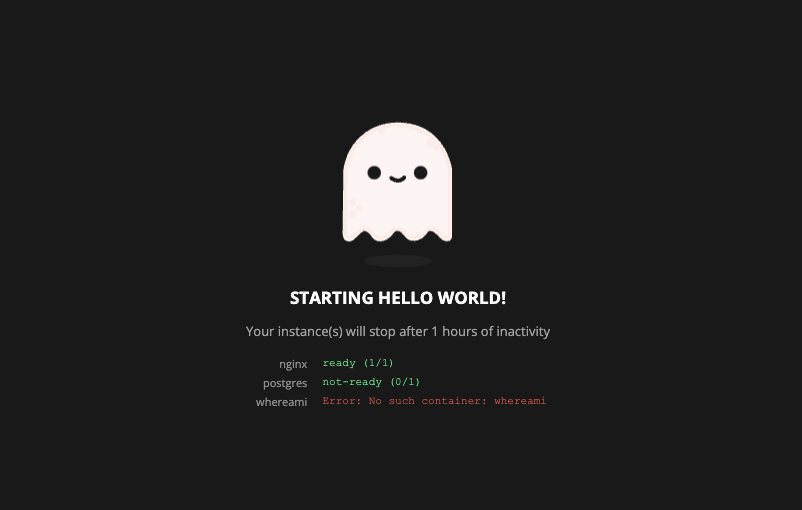 |
shuffle | 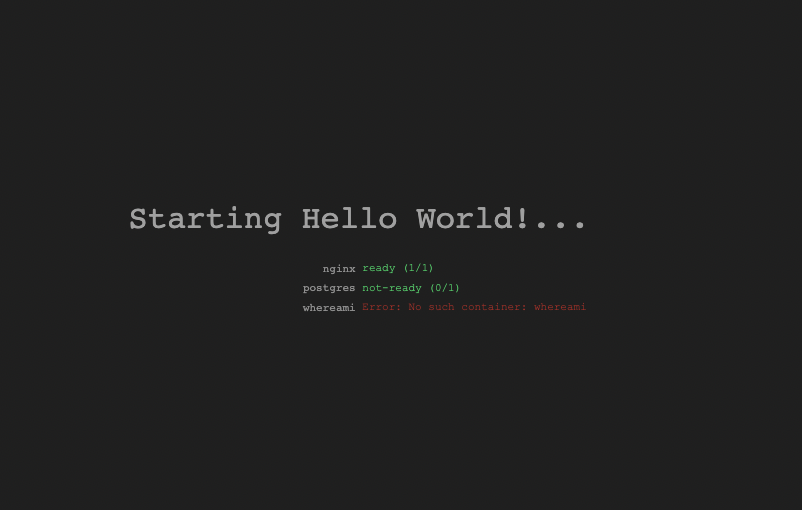 |
hacker-terminal | 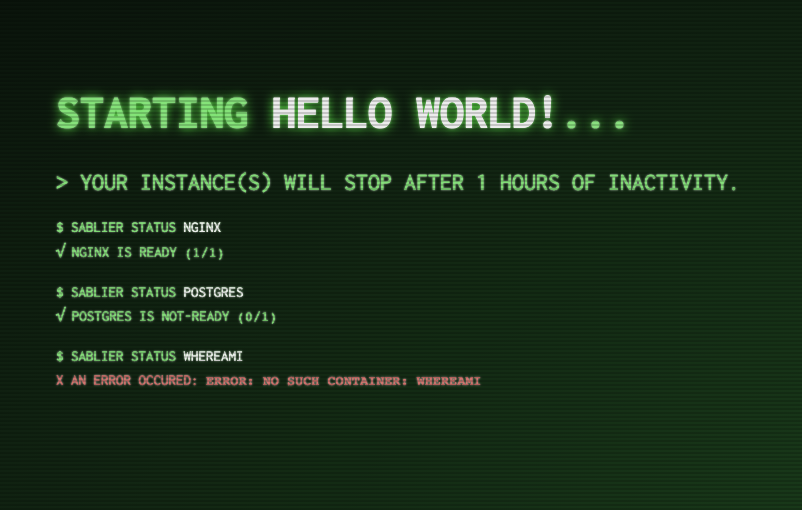 |
matrix | 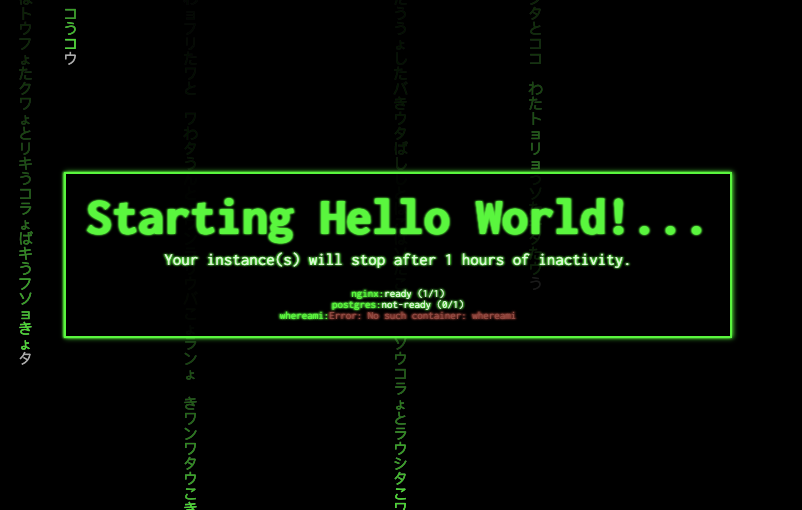 |
retro | 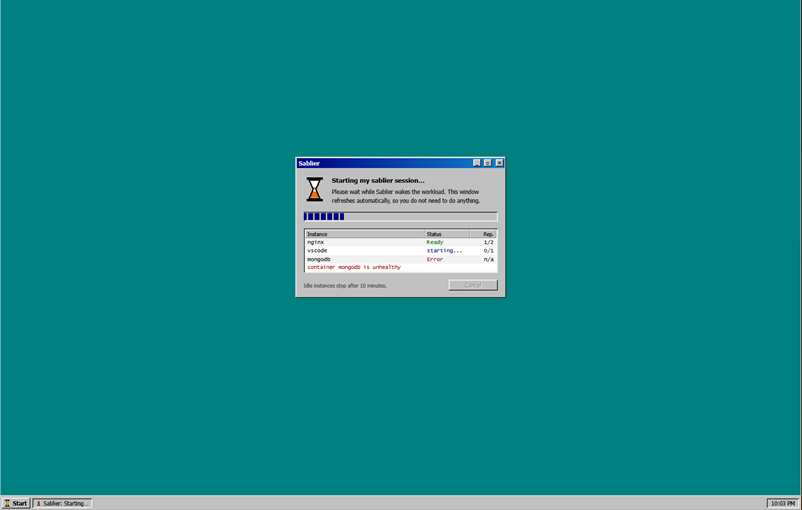 |
Custom themes locations
--strategy.dynamic.custom-themes-path defaults to /etc/sablier/themes, so the volume mount
shown at the top of this page is all you need: no extra argument is required. Set the argument
only when you want Sablier to look somewhere else.
If the folder does not exist, Sablier serves the embedded themes and says so at debug level,
so leaving the default in place costs nothing when you have no custom themes.
Sablier will recursively search for themes with the .html extension.
- You cannot load new themes added to the folder without restarting
- You can modify existing theme files without restarting
Asset bundling
Sablier bundles external assets at startup when loading custom themes. Any relative CSS, JavaScript, or image reference inside a custom .html file is read from the same directory tree and inlined directly into the template, so the browser receives a fully self-contained page with no additional requests.
| HTML pattern | What Sablier inlines |
|---|---|
<link rel="stylesheet" href="css/style.css"> | <style>/* contents of css/style.css */</style> |
<script src="js/app.js"></script> | <script>/* contents of js/app.js */</script> |
<img src="imgs/logo.png"> | <img src="data:image/png;base64,..."> |
Paths that are not inlined and remain unchanged:
- Absolute URLs:
https://cdn.example.com/style.css - Protocol-relative URLs:
//cdn.example.com/style.css - Root-relative paths:
/static/style.css - Data URIs already present in the HTML:
data:image/png;base64,...
If a referenced file cannot be found on disk the original tag is kept as-is, so a missing asset causes a broken browser request rather than a startup error.
Directory layout example
/path/to/my/strategies/themes/
├── my-theme.html
├── css/
│   └── style.css
└── imgs/
    ├── logo.png
    └── favicon.png
<!-- my-theme.html -->
<!DOCTYPE html>
<html lang="en">
<head>
<meta http-equiv="refresh" content="{{ .RefreshFrequency }}" />
<link rel="stylesheet" href="css/style.css">
</head>
<body>
<img src="imgs/logo.png" alt="Logo">
<p>Starting {{ .DisplayName }}...</p>
<script src="js/app.js"></script>
</body>
</html>At startup Sablier reads css/style.css, imgs/logo.png, and js/app.js relative to my-theme.html and produces a single self-contained template. External CDN links (e.g. Google Fonts) are left untouched.
Create a custom theme
Themes are served using Go Templates.
Available Go template values
| Template Key | Template Value | Go Template Usage |
|---|---|---|
.DisplayName | The display name configured for the session | {{ .DisplayName }} |
.InstanceStates | An array of RenderOptionsInstanceState that represents the state of each required instances | {{- range $i, $instance := .InstanceStates }}{{ end -}} |
.SessionDuration | The humanized session duration from a time.Duration | {{ .SessionDuration }} |
.RefreshFrequency | The refresh frequency for the page. See The <meta http-equiv="refresh" /> tag | <meta http-equiv="refresh" content="{{ .RefreshFrequency }}" /> |
.Version | Sablier version as a string | {{ .Version }} |
$RenderOptionsInstanceState.Name | The name of the instance loading | {{- range $i, $instance := .InstanceStates }}{{ $instance.Name }}{{ end -}} |
$RenderOptionsInstanceState.CurrentReplicas | The number of current replicas of the instance loading | {{- range $i, $instance := .InstanceStates }}{{ $instance.CurrentReplicas }}{{ end -}} |
$RenderOptionsInstanceState.DesiredReplicas | The number of desired replicas of the instance loading | {{- range $i, $instance := .InstanceStates }}{{ $instance.DesiredReplicas }}{{ end -}} |
$RenderOptionsInstanceState.Status | The status of the instance loading, ready or not-ready | {{- range $i, $instance := .InstanceStates }}{{ $instance.Status }}{{ end -}} |
$RenderOptionsInstanceState.Error | The error trigger by this instance which won’t be able to load | {{- range $i, $instance := .InstanceStates }}{{ $instance.Error }}{{ end -}} |
The <meta http-equiv="refresh" /> tag
The auto-refresh is accomplished using the HTML http-equiv Attribute.
Defines a time interval for the document to refresh itself.
The first step to creating your own theme is to include the HTML <meta> http-equiv Attribute as follows:
<head>
  ...
  <meta http-equiv="refresh" content="{{ .RefreshFrequency }}" />
  ...
</head>
The showDetails option
If showDetails is set to false, the .InstanceStates will be an empty array.
How to load your custom theme
You can load themes by specifying their name and relative path from the --strategy.dynamic.custom-themes-path value.
/my/custom/strategies/themes/
├── custom1.html      # custom1
├── custom2.html      # custom2
└── special
    └── secret.html   # special/secret
For example:
curl 'http://localhost:10000/api/strategies/dynamic?session_duration=1m&names=nginx&theme=custom1'See the available themes from the API
The themes endpoint is served at /api/themes (the legacy path /api/dynamic/themes still
works). It returns every loaded theme, embedded and custom alike, in a single sorted list.
curl 'http://localhost:10000/api/themes'With the layout shown in How to load your custom theme:
{
  "themes": [
    "custom1",
    "custom2",
    "ghost",
    "hacker-terminal",
    "matrix",
    "retro",
    "shuffle",
    "special/secret"
  ]
}
See the API reference for the full themes endpoint documentation.
Design your theme in the browser
To build and preview a theme visually, use the Sablier theme editor, then export the HTML into your themes folder.